| Revision History | ||
|---|---|---|
| Revision 1.1 | 2004.02.12 | JC4 |
| Revisions made, image added. | ||
| Revision 1.0 | 2004.02.07 | ATP |
| Initial Draft of the Lab | ||
Table of Contents
![[Warning]](http://www.cc.gatech.edu/classes/AY2003/cs2335_spring/labs/images/warning.png) | Warning |
|---|---|
This lab is due on WebCT before 2004.02.27 08:00 (that means turn it in no later than 7:59am) *** DO NOT WAIT UNTIL THE LAST MINUTE TO SUBMIT YOUR ASSIGNMENT *** | |
NetTxt Xtreme is a collaborative, on-line text editing community. It is a system whereby multiple, distributed users can open and collaboratively edit documents using the power of cyberspace.
NetTxt Xtreme will be significantly more advanced than previous assignments, but build on many of the same concepts. There are many requirements, so read carefully. We do not constrain the design of your system, only the functionality requirements that must be met.
Joe User logs into the system. Joe finds himself in the Global chat room for the entire system. By browsing the server's list of collaborative files and chatting with his peers, he can ascertain what file he would like to edit.
After Joe User has selected a file, he chooses that file from the community file browser. Joe can also choose to create a new file that the community can work on. Today, though, Joe would like to work on an already existing file. When he connects to the file he wants to edit, he then sees a list of the various editable sections of that document. (Think of sections as being analogous to chapters in a novel.) Joe can chose to create a new section for a document or edit a section that is not already locked. Joe choses to edit a section of the document that is not already in use.
The server notes that Joe has locked that section of the file and tells Joe's client to display a text editor for that section. When Joe is done editing his section, he can click "save" and the changes he made will be committed to the system.
Jane User, Joe's long-lost cousin, is also editing Joe's document. She notices Joe is editing a section and that he has been doing so for over an hour. She tells the client that she would like to see the current state of Joe's section. The server then grabs Joe's section out of his editor window and updates Jane's local display. Jane likes what Joe has done and decides to create a local copy of the entire document. Jane types Joe a compliment on his work that Joe sees in his local file chat-room. She tells her client that she would like to export a copy to her system. The client then creates a copy of the document on her system from what she has, and Jane reads through it using her HTML web browser.
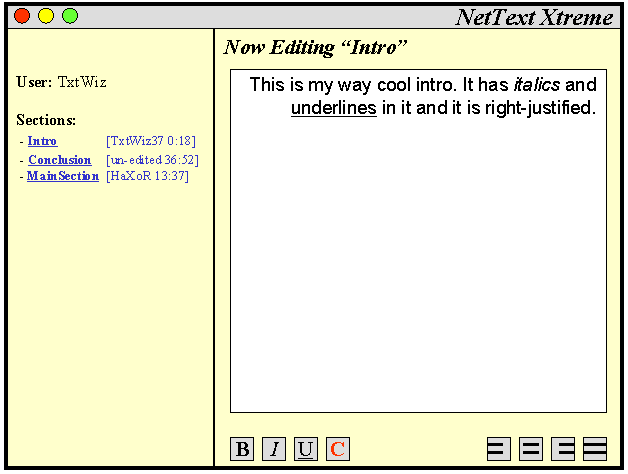
Each file that is being worked on should be divided into sections that may be edited by the user. Only one user may work on a particular section at any given time, and that section should be considered locked until released by said user. A user, however, may work on more than one section at a time, and it is the server's responsibility to track which sections are locked (by whom) and allowed to be edited. Sections are not required to be embedded. In other words, a section does not need to have the ability to contain other sections (this is an extra credit opportunity, however).
When a new document is started, it is assumed that there are no existing sections. A user's client should have the ability to both create new sections, and edit existing, non-locked sections. A section should have the following attributes:
- A unique key that identifies the section (The key may be just a simple ID number or a text string of the section name -- it's up to you.)
- A position which indicates the order the sections should appear on the client view. The position of a section may be changed, but no two sections should ever share the same position.
- The current user (if any) that has the section locked, to prevent others from editing it.
- A time-stamp which displays the length of time since the section has gone unedited (e.g. "this section un-edited for 2 days, 3 hours, 27 minutes"), or the time the section has been locked by a user (e.g. "this section locked by 'TxtWiz37' for 18 minutes"), depending on the appropriate situation.
The Server must be multi-threaded and connect multiple users as always. The Server must first accept connections and then login users by letting the client choose a handle/screen-name which the Server ensures is unique (otherwise, the client must re-prompt). Chat room functionality will be handled by the Server as well.
The Server will handle all files for NetTxt Xtreme. It will manage the updates/posts to a document, creation of a new document, and receive files from the client which the Server will then import into NetTxt Xtreme section format. The Server will also provide the client with a list of all available files and those that are currently open by other users. The Server will also save open files to its local file system with the latest updates it has either on an unlocking of a section or by client request.
The server must have a graceful way of exiting (one possible way would be to have a GUI console that pops up while the server is running that has a "disconnect server" button). When the server exits it needs to save a current copy of the file on the server (in a pre-determined location).
Suggestion: If you have a GUI "console" that controls the server, you may wish to use it to permit the user to choose which port the server uses and the location where the files are to be saved (remember to include reasonable default values for these).
The chat system for NetTxt Xtreme is vital to the collaborative effort. The chat system required will be of the global and chat room style.
All users, from the time they are logged in to the server to the time they disconnect, will have a unique handle/scree-name and will join the global chat room. The UI should provide a list of all users currently in the global chat room and allow for chat room messaging.
When a user opens a particular file or creates one, that user enters a new chat room with all other users currently working on that particular file. The UI should provide a list of all users currently working on that file and allow for chat room messaging in an area separate from the global chat room.
Upon joining a server and choosing a document to work on, a client should have the ability to create a new section to work on, or editing any existing section. Either selection (assuming the selected section was unlocked or new) should bring up an editing window which allows the user to edit the contents of a section. The section should be considered locked by the server, and no other clients should be allowed editing capabilities to the section until the locking user releases the section. If a user attempts to lock/edit an already locked section, an indication should be made to the client that the section is currently locked and NO editing window should be presented.
When working on a section, the user should have the capability to Post the changes the user has made, which would tell the server to accept the changes made by the user and then update all of the currently connected clients. The user should be allowed to continue working on the section until he chooses to Release the section. A Release would perform the operation of a Post and unlock the section to allow other users to edit it. A client should also be able to unlock the section disregarding any changes that may have been made.
The client should have the following editing capabilities (These should be able to be applied by the user by highlighting a section of text and clicking the appropriate icon -- much like other editing programs):
- The ability to bold, italic, or underline any specified text in a section
- Multiple fonts
- Colorized text with a full array of colors
- Alignment of text, such as Center, Left or Right
- Different font sizes
As you can tell, the requirements resemble those that are already easily supported by HTML, and we once again highly recommend using HTML with the combination of multiple JEditPanes. Although, the editing window does not need to support a rendered view and may just show the HTML tags in conjunction with the text for the user to edit.
The client should at all times display the most updated version (since that particular client updated last) of the document, fully rendered (i.e. if you are using HTML, no bold tags should be displayed, but rather the text should be bold'ed ). The view should obey the order specified by each sections position.
Remember as well, the client should be allowed to request updates on any given section (or all sections), which should immediately be reflected in the rendered view of the client's document.
Finally, the client should present visually to the user the following properties of each section
- An indication if the section is locked, and by which user
- The key that uniquely identifies the section
- A flag that indicates if the section has been edited/changed since the client last updated the section
- The amount of time the section has been locked by a user, or the amount of time since the section has been edited depending on the appropriate situation
The main purpose of NetTxt Xtreme is to allow for multiple people to simultaneously collaborate on a text file. When one user has a section locked, only that user can make changes to that section. However, other users may want to view that same locked section, and should be able to do so by asking for an update from the server, which will retrieve the current text of that section and send it to the requesting user only.
Your UI should display a time-stamp of the last time a particular section was updated. The UI must give some indication to the user that a section has been changed by its owner since the last time the user updated it. You must be able to request an update of locked sections from the server and properly display those updated sections. You should also be able to request that all locked sections not under your control be updated.
The client should also be able to post a section that a user is currently working on, either manually through the UI or when the client unlocks a particular section. That section should then be updated on all other clients and on the server.
When creating a new file in NetTxt Xtreme, the user shall be given two options: creating a blank document or importing a file. When creating a blank document, the user shall be able to add sections, just as in a regular document.
You are required, also, to implement a basic file importer. This importer shall be able to read in a plain text file (you should assume a standard ASCII file with unix line termination, i.e. using '\n' characters) and, using some scheme that is up to you, be able to break it into sections (Note: creating one section for the entire document is not a valid scheme). One such scheme would be to break the document into sections based on paragraphs, in other words, every time you encounter two new lines (i.e. "\n\n" in the file), start a new section.
![[Important]](http://www.cc.gatech.edu/classes/AY2003/cs2335_spring/labs/images/important.png) | Important |
|---|---|
The file to be imported is going to be located on the local computer of the client. You will have to build some mechanism to get the file data to the server so that it can be stored as a new collaborative document within the NetTxt Xtreme system. | |
See the extra credit section for points you can earn by implementing a more complicated importer.
Sometimes, a user may want a copy of the complete file on their local system. In order to facilitate this, you need to give the users the ability to export a copy of the file they are currently editing. Exporting will produce a document that is a properly formatted HTML document conforming to the current state of the document, as the user currently sees it. This is very important. File Exporting should produce a copy of the document based on any sections the user may have updated that differ from the server copy.
You must submit the following things:
- All source code and libraries needed to run your program.
-
The Ant build-file (build.xml), which needs
to contain the following targets (with the
appropriate dependencies):
- runclient - Runs the client program this should be the default target
- runserver - Runs the server program
- build - Compiles your program
- checkstyle - Runs Checkstyle on your source code
- pmd - Runs PMD on your source code
- jar - Creates an executable Jar of your program
- javadoc - Creates the JavaDoc for your program (NOTE: JavaDoc must not produce any errors/warnings to receive credit)
- clean - Removes all files created from all other targets
- A completed README file (see "README.txt" in the supplemental files provided with the lab).
- If you are seeking extra credit for implementing other importers, please include one example file in the format you seek to import.
The above items must be submitted in an archive file in one of the following formats: zip, tar, jar, or gzip.
| Warning |
|---|---|
The following are part of the grading criteria for
this lab:
| |
- Advanced Editing Mode (give users the option to use the standard WYSIWYG editor or let them directly edit the HTML source code and it should be easy to switch between the two) - 5 pts.
-
Advanced Importing. You can get 5 pts each for
implementing any of the following schemes (you must
include a large (40 or more line) example of the format
you are attempting to import):
- Rich Text Format
- HTML
- DocBook (XML file format)
- Some other format (e.g. LaTeX). E-mail a format idea to a TA by 23:59 Wednesday, February 18 to get approval for another format.
- Auto-saving Server - server auto-saves open files every configurable time interval. - 5pts.
- Embedded locking. The ability to have nested locking sections. An example of this would be if you were editing a java source code file, a user could look the whole class or just the methods. - 20pts.
- Amazing UI - 5pts (this is decided by your TA)
- Other ideas. If you have an idea you'd like to try for extra credit, email it to a TA for approval by 23:59 Wednesday, February 18. The TA will determine how many (if any) points are merited.
| Important |
|---|---|
Unless arranged in advance (in writing), your TA will be grading this assignment on the RedHat systems available in the States Lab and will be using the Java tools provided in the "~cs2335/" directory. It is YOUR responsibility to verify that your program will work on these systems prior to submitting it. | |